Profile and contact details
Make sure you can be reached
- Enter your name and contact details accurately.
- Check fields that cannot be changed because of verification.
- Add a current photo of yourself if requested.
Scholarship application form
The application form helps scholarship-providing institutions assess you and your eligibility for a programme. Enter only requested, current and accurate information.
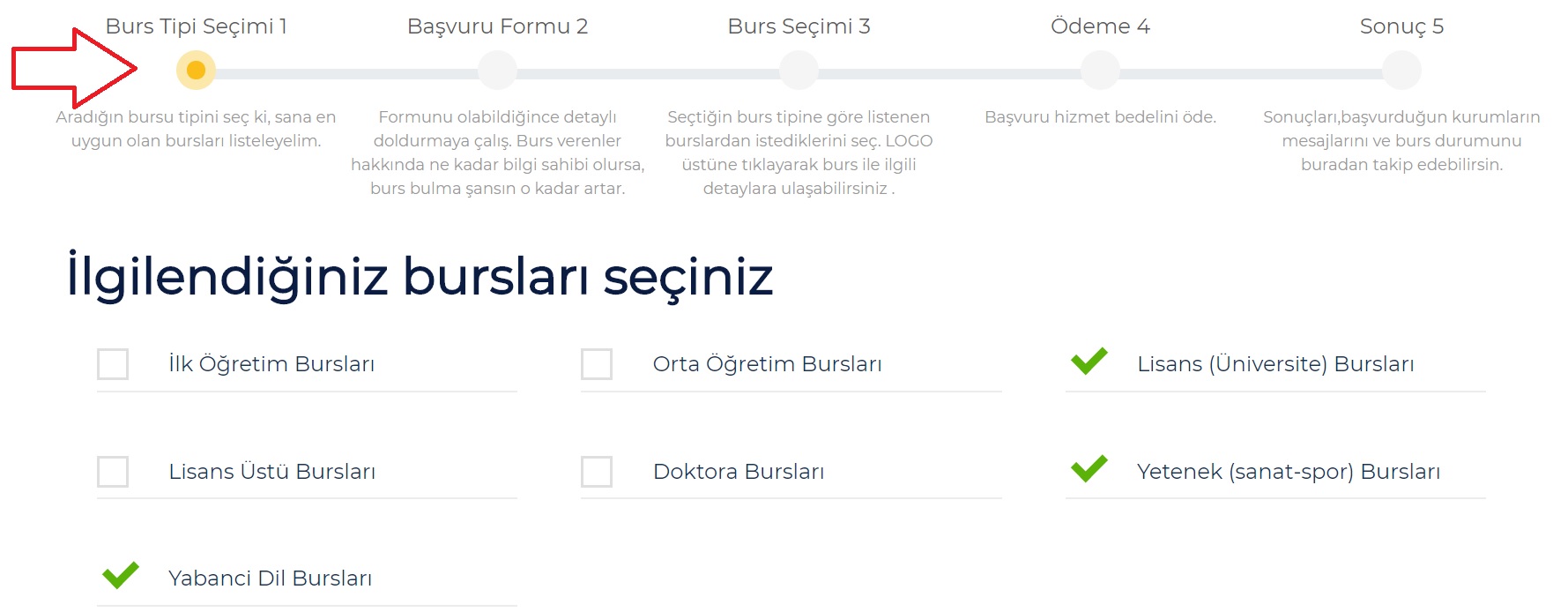
Scholarship type selection
The fields shown in the form may change according to the scholarship types you select and your application status.
Before you start
The fields shown in the form may change according to the scholarship types you select and your application status. Review programme conditions and required-field indicators carefully.
Form sections
Profile and contact details
Education details
Family, social and scholarship details
Documents and final steps
Upload only requested, legible documents that belong to you in the correct form field. Follow form rules for file type and size.
At the final stage of the form, enter accurate and current bank account and IBAN details that belong to you. Do not share them by email or message.
You can create a PDF version of your form for applications to institutions outside the platform. Some private information is hidden in the PDF.
Before submitting
When your information changes, sign in again and update your form. Changes available after submission may vary according to programme status.